Digital business cards for real estate agents: five compared
What an agent's digital card needs to do at open homes, and how Blinq, Tapt, Propps, HiHello and Real Agent Marketing compare, from each vendor's own website.
How buyers save your card from a QR code at an open home, adding your own card to Google Wallet, what to do on iPhone, and your QR code in print.
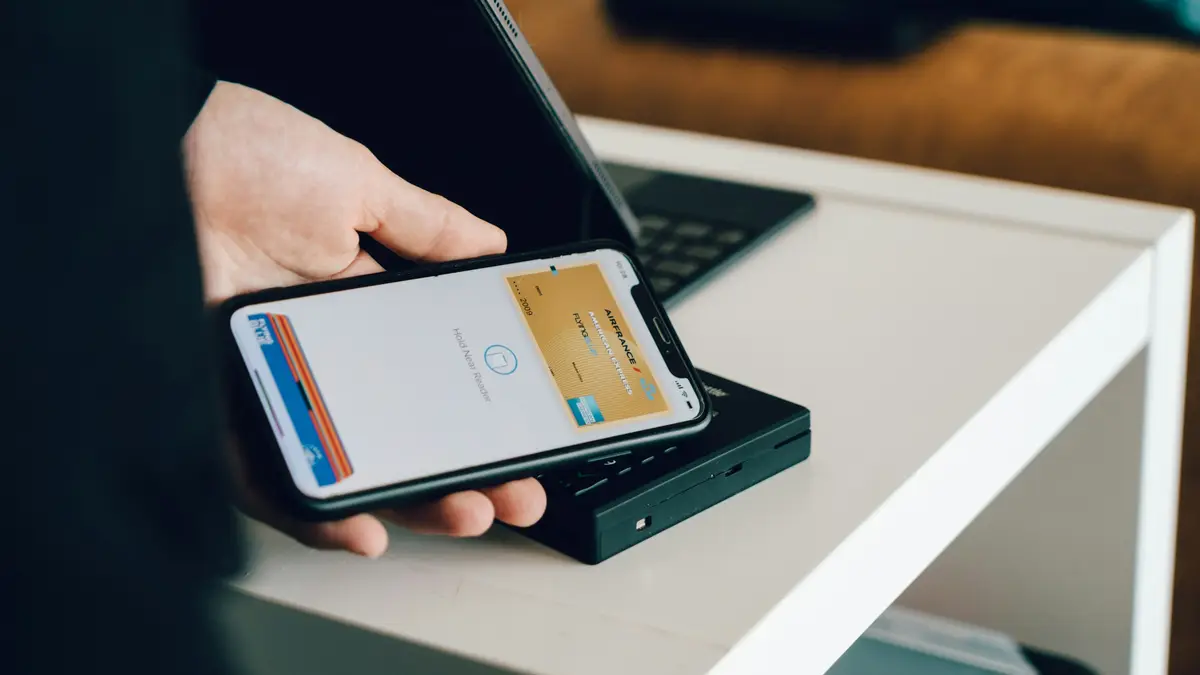
You’ve printed your QR code for the open home stand. Then a buyer stops you in the driveway and asks for your number, and the stand is inside. This is where a wallet pass earns its keep: your card, with its QR code, one swipe away on your own phone.
This guide covers how buyers save your card, how to add your card to your phone’s wallet, and how to get the most from your QR code in print. We’ll be upfront about one thing first.
Google Wallet: yes. You can add your own digital card to Google Wallet from your dashboard.
Apple Wallet: not at the moment. We don’t currently offer an Apple Wallet pass. If you use an iPhone, there’s a simple alternative further down.
Google Wallet is an Android app. Google’s help page says you need Android 9 or later to download and use it.
Agents meet people in places where printed cards run out: at the front gate, in the car park after an auction, at the local café. A wallet pass means:
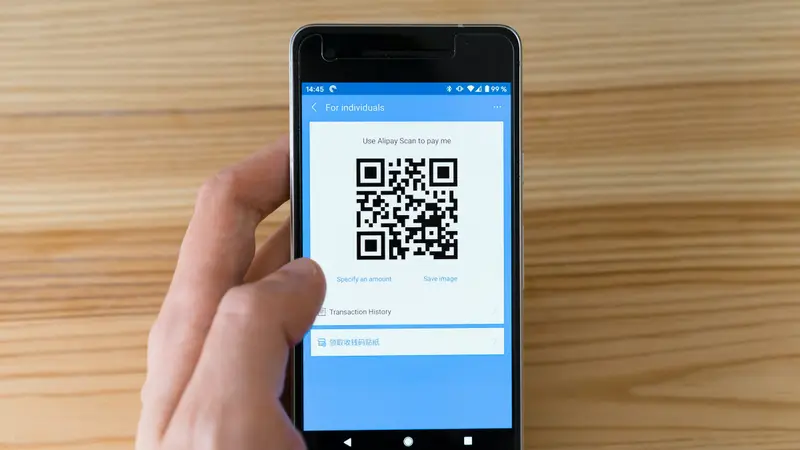
Buyers don’t need Google Wallet, Apple Wallet or any app to keep your details. Here’s what happens when they scan your QR code from a stand, a brochure or your phone:
That last step is the important one. When they’re ready to sell, they’ll search their contacts for “real estate” or your first name, and you’ll be there, spelled correctly.
If they want to know more, your card links to your listings and your own website on the Starter and Pro plans. If they send an enquiry, it lands in your inbox with an email alert.
You’ll need your card published first, because the pass shows your card as it’s published.
On a computer? Choose “Show a QR code to scan with your phone”, scan it with your Android phone, and save the pass from there.
| On the pass | Where it comes from |
|---|---|
| Your agency’s name, or your own brand | Your card’s branding setting |
| Your name and role | Your card |
| Your photo or your agency’s logo | Your brand: own brand shows your photo, co-branded shows the logo |
| Mobile, areas and email | Your card’s details |
| About, office and licence | In the pass details |
| A QR code to your card | Labelled “Scan to save my details” |
| Links to call, email, open your card and visit your website | Your website link appears when your plan includes one |
The colour of the pass follows your card’s brand colour. When you change your details or your agency and publish your card again, your pass updates too.
Until we offer an Apple Wallet pass, here’s what works well on an iPhone:
The buyer’s side is the same on every phone: they scan, your card opens, and they tap “Save contact”.
Your QR code works hardest in print. A few tips:
Download the print version. In “Sharing and QR code” you can download your QR code as an SVG file. The download is always black, which prints cleanly at any size. On your card itself you can choose black or your brand colour.
Say what it does. A QR code on its own is easy to ignore. Add a short line next to it: “Scan to save my details” or “Scan for my card”.
Test it before you print. Print a proof, stand where a buyer would stand, and scan it with an iPhone and an Android phone. A code that works on your screen may be too small on a stand at the front door.
Give it space. Keep a clear margin around the code, and don’t put it over a busy photo.
Put it where people wait. The stand at the front door, the back page of the brochure, the price list on the kitchen bench, the bottom of your email signature.
Check before you add it to a signboard. Signboards and rider boards usually belong to your agency’s marketing. Ask before adding your personal QR code, and follow your agency’s brand guidelines.
Remember the privacy side. If people send you their details through your card, you’re handling personal information. Use it only for the reason they gave it, and follow your agency’s privacy policy.
Your card doesn’t replace your Domain or realestate.com.au profiles. Buyers will keep finding homes on the portals. Your card is how they keep you: saved in their contacts, with a link to your own site, long after the open home.
For more ideas, read what a digital business card should do at an open home and our comparison of digital business cards for agents.
Your card is free on every plan, including the A$0 plan. Create your card and add it to Google Wallet before Saturday’s open home.
What an agent's digital card needs to do at open homes, and how Blinq, Tapt, Propps, HiHello and Real Agent Marketing compare, from each vendor's own website.
Paper cards get left on the bench. A good digital card saves you to a buyer's phone, sends them to your website and starts a conversation.
What comes with you when you change agencies and what stays behind: profiles, reviews, your domain, website and contacts. Plus a checklist.
Start free with your digital card. Upgrade when you're ready for your own site and domain.